

How to Run Course Status Reports
Run a basic report: Course Status example
Tip: Downloaded basic reports are more detailed than onscreen displays, with more columns of data. If you're new to reports, download samples of each to learn what's available.
The Course Status report shows all the learners enrolled in a specific course.
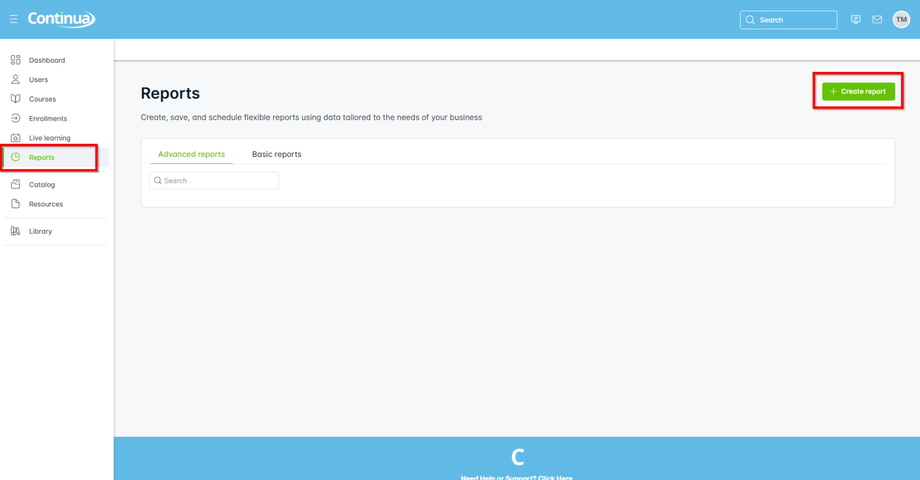
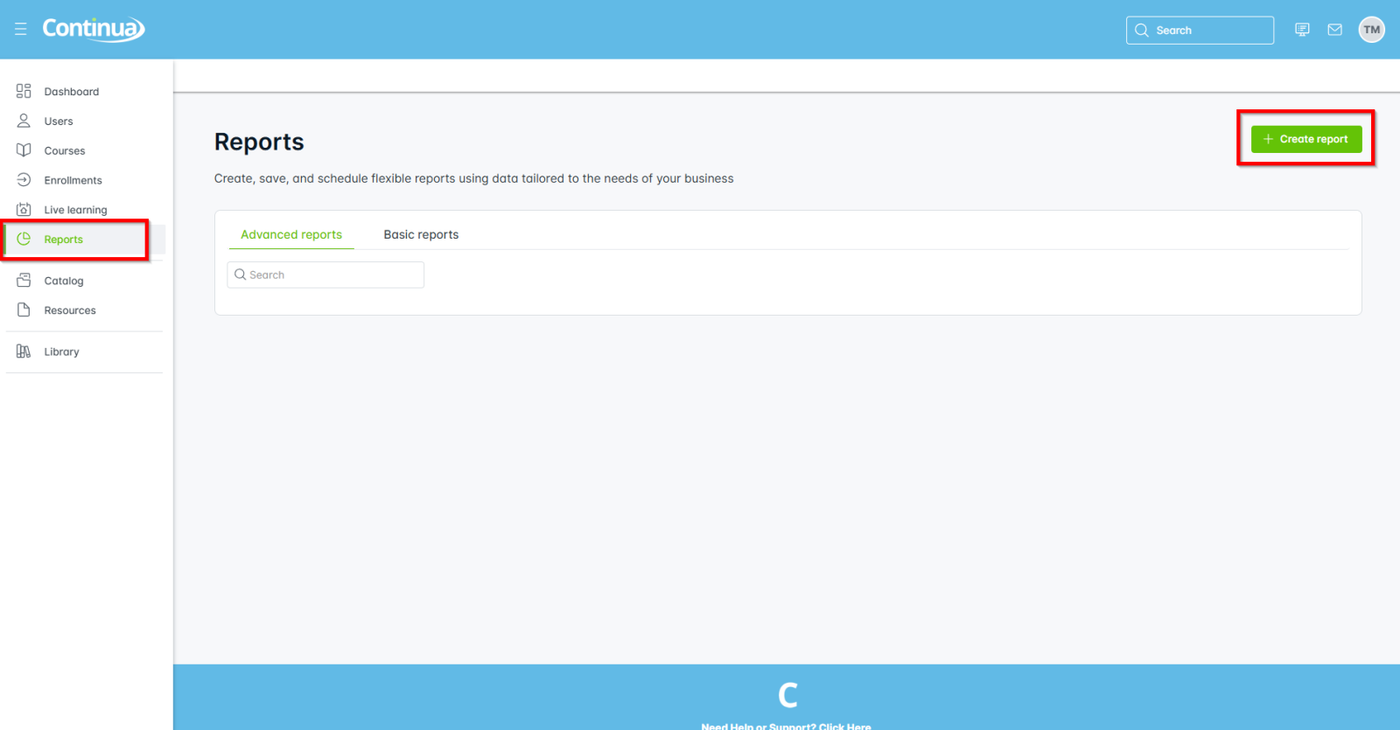
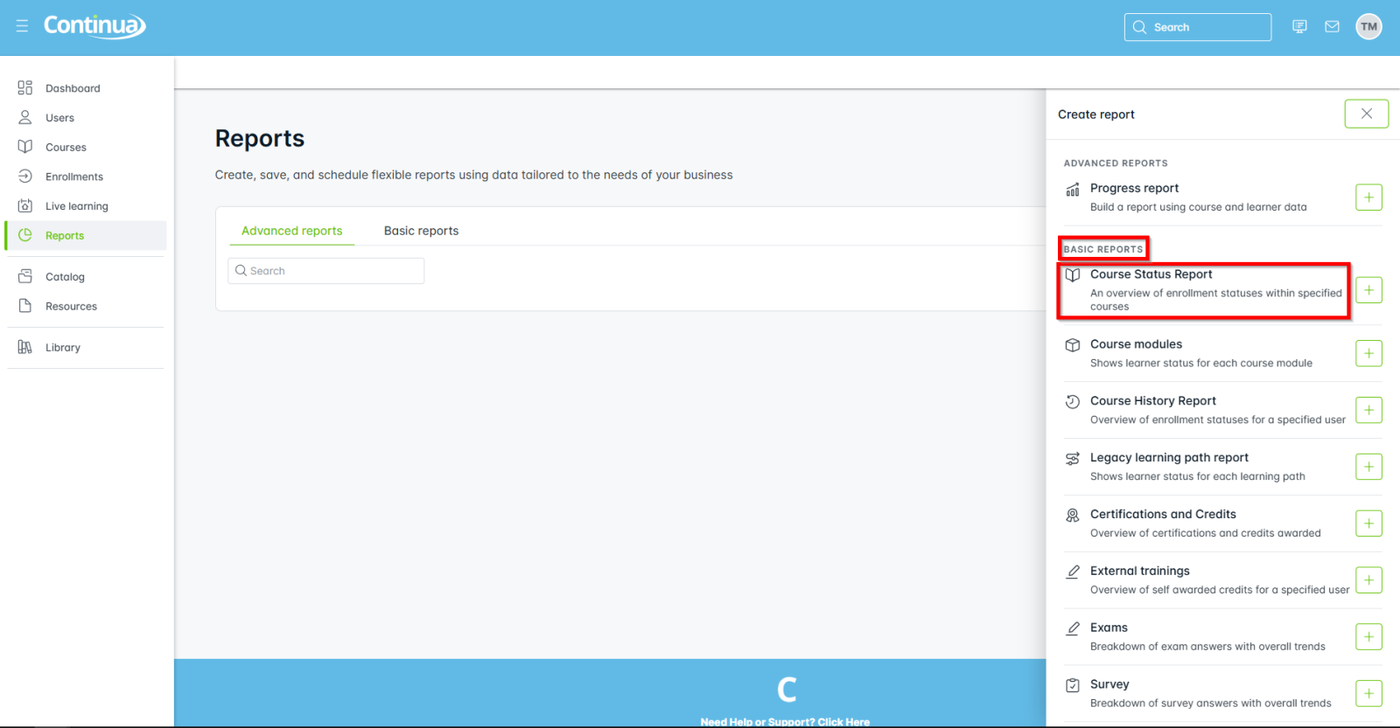
- From the primary navigation, select Reports > + Create Report.
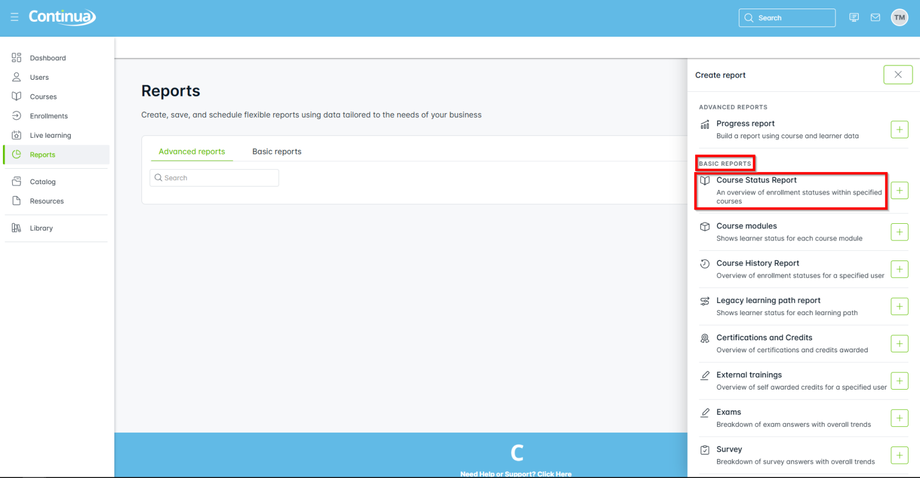
- From Basic Reports, select Course Status Report.
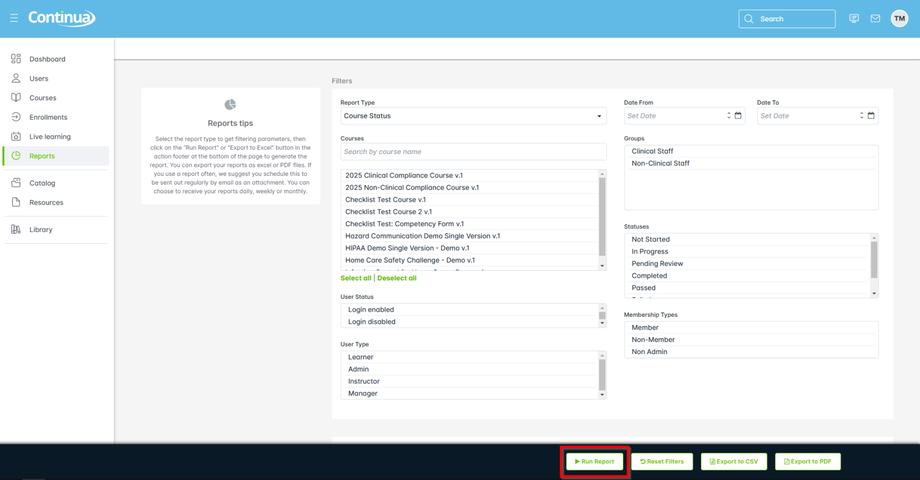
- Select your course(s) to include in your report.
- Select Run Report.
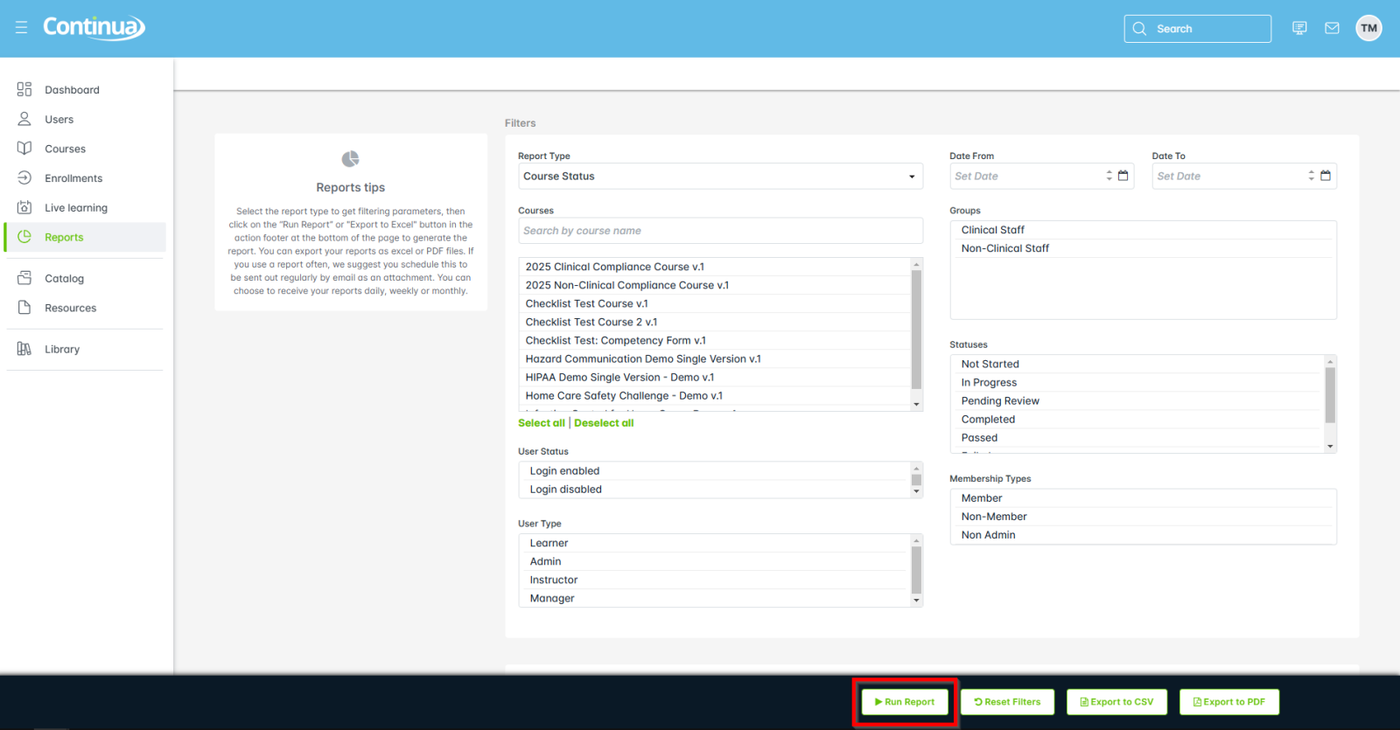
After running the report once you can
- edit the filters to change the results, and select Run Report to repeat the run
- select Reset Filters to start over
- select Export to CSV or Export to PDF to download a complete report
- select Schedule to run the report daily, weekly or monthly. See Reports: schedule a basic report
The following screenshot shows the highlights of the course status report, with its available controls.
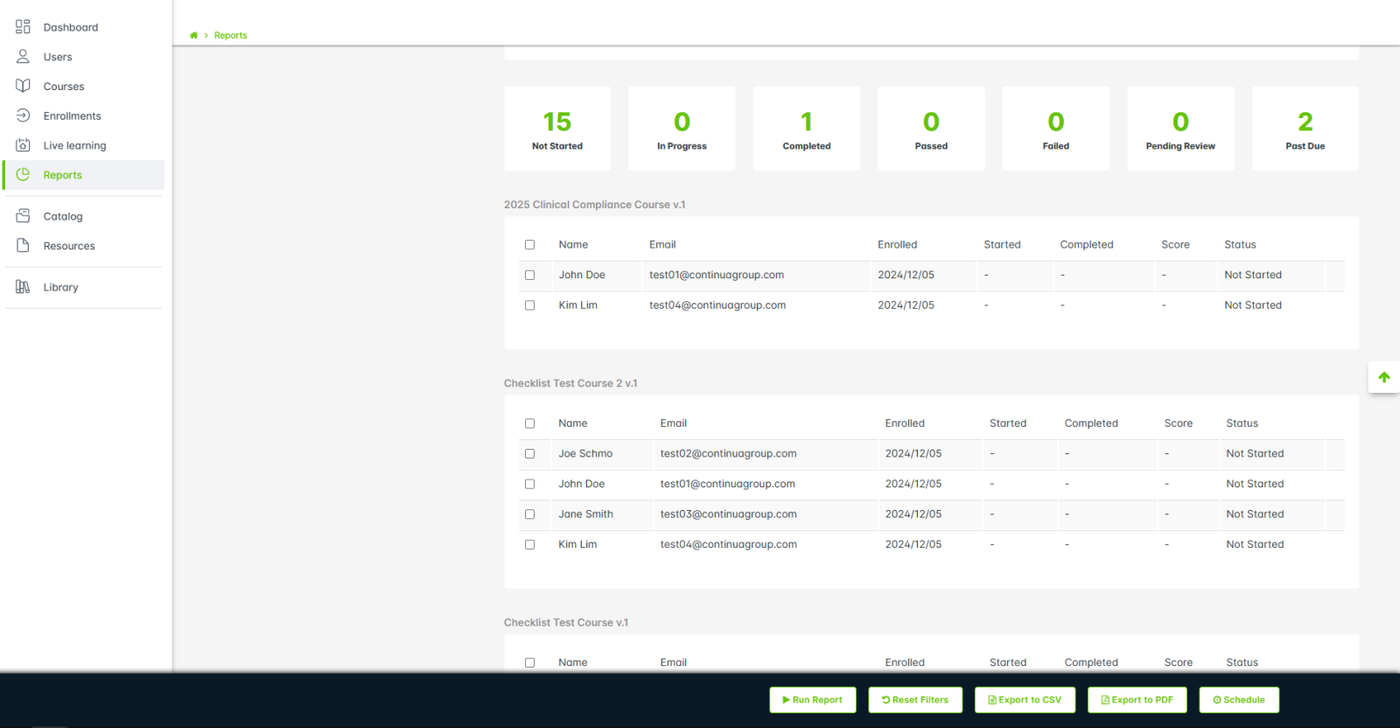
LearnUpon shows the highlights of your basic report on the page. Details of the course status report include:
- Course name
- Learner name
- Learner email
- Date of enrollment
- Date started
- Date finished
- Score achieved (if any)
- Enrollment status
In the report: the Enrolled date is the date a learner is enrolled on a course by an admin, by a manager, or by self-enrollment. The Started date is the date the learner selected the course Start button.