
How to Run Course History Reports
Run a basic report: Course Status example
Tip: Downloaded basic reports are more detailed than onscreen displays, with more columns of data. If you're new to reports, download samples of each to learn what's available.
The Course Status report shows all the learners enrolled in a specific course.
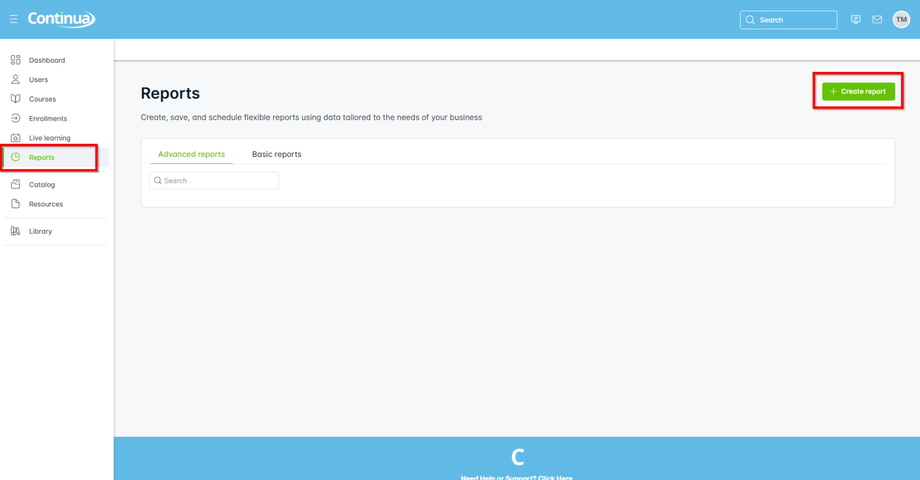
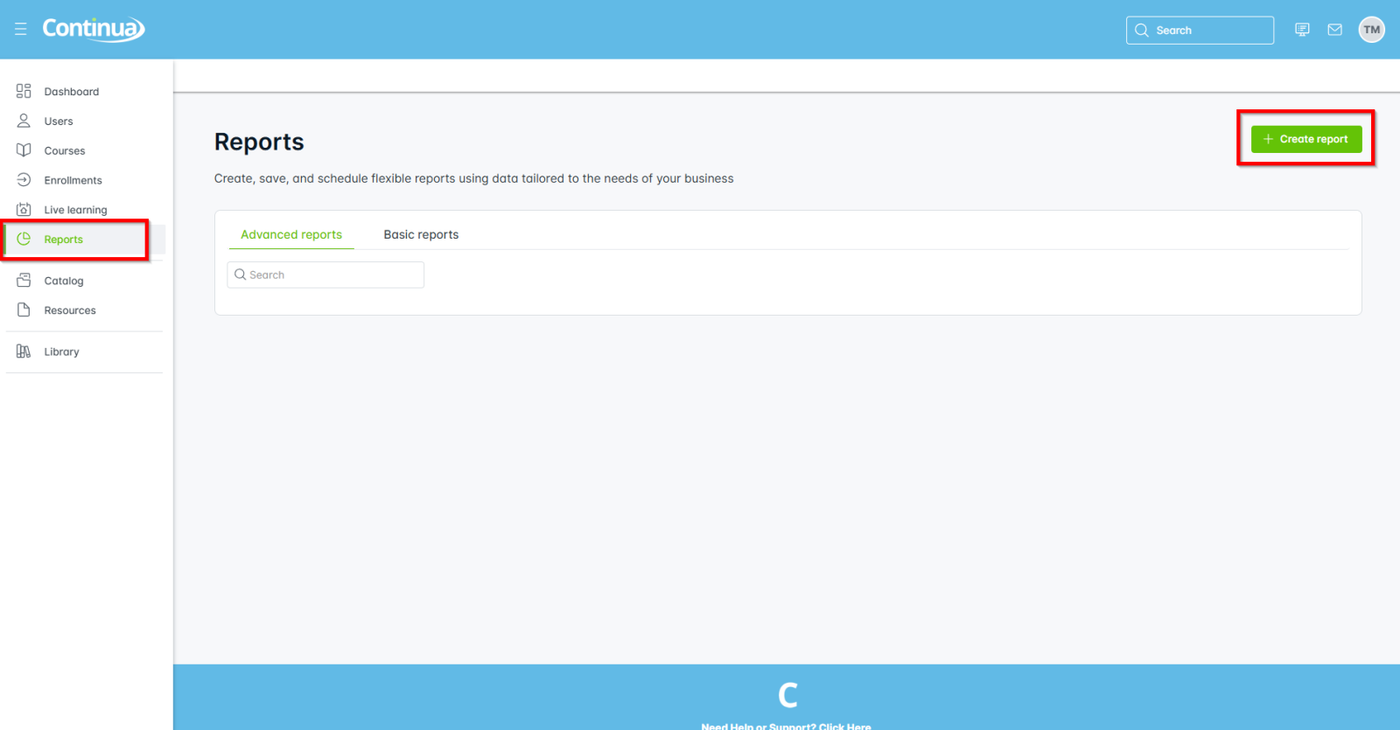
- From the primary navigation, select Reports > + Create report.
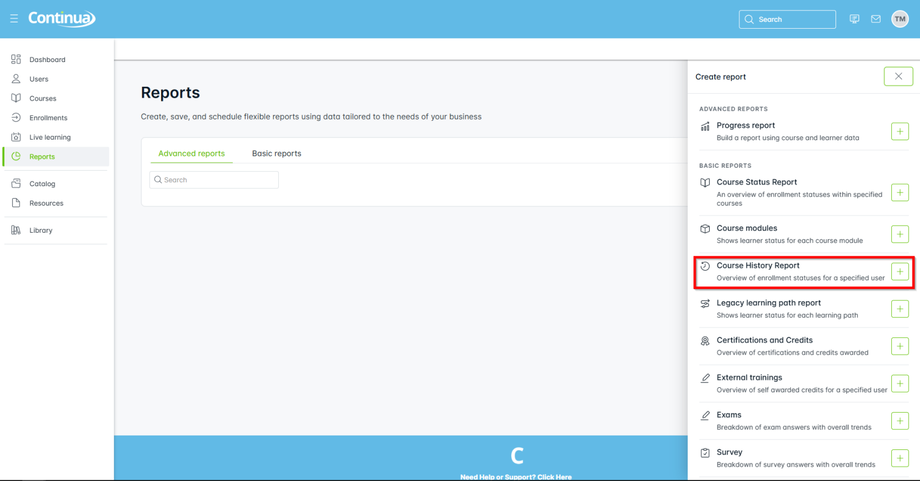
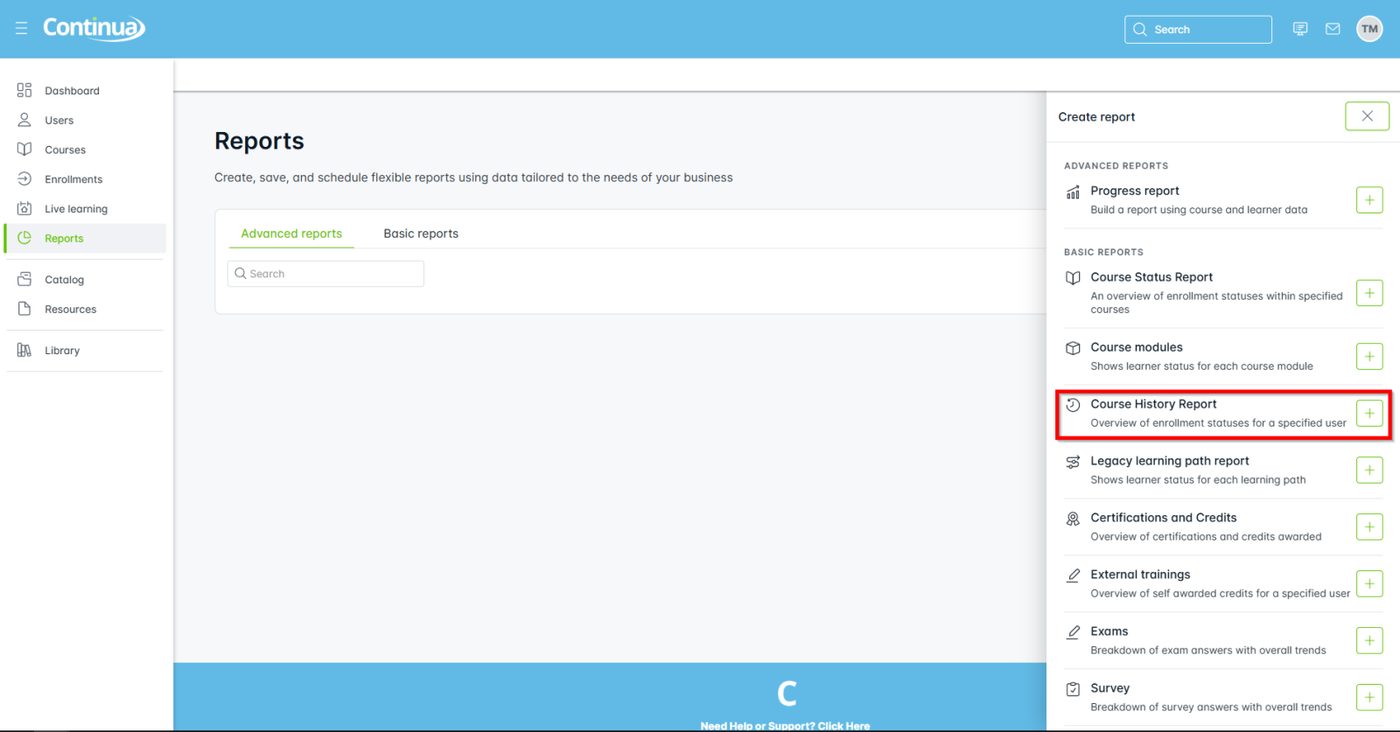
- From Basic Reports, select Course History report.
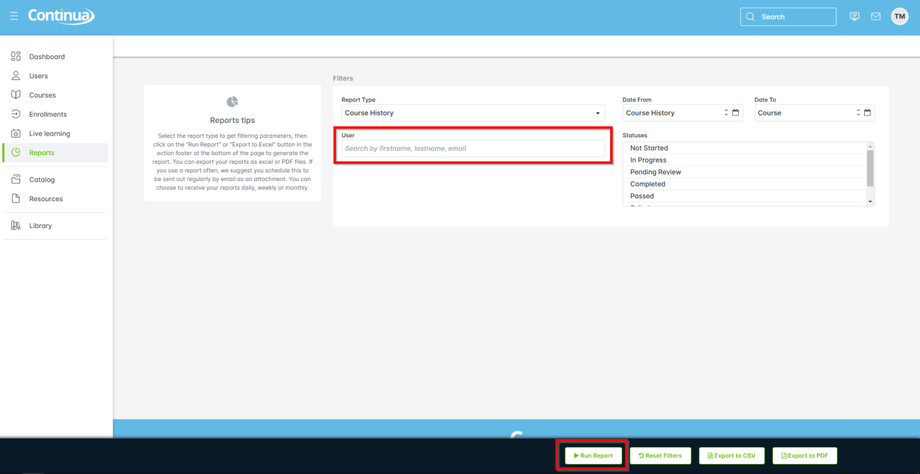
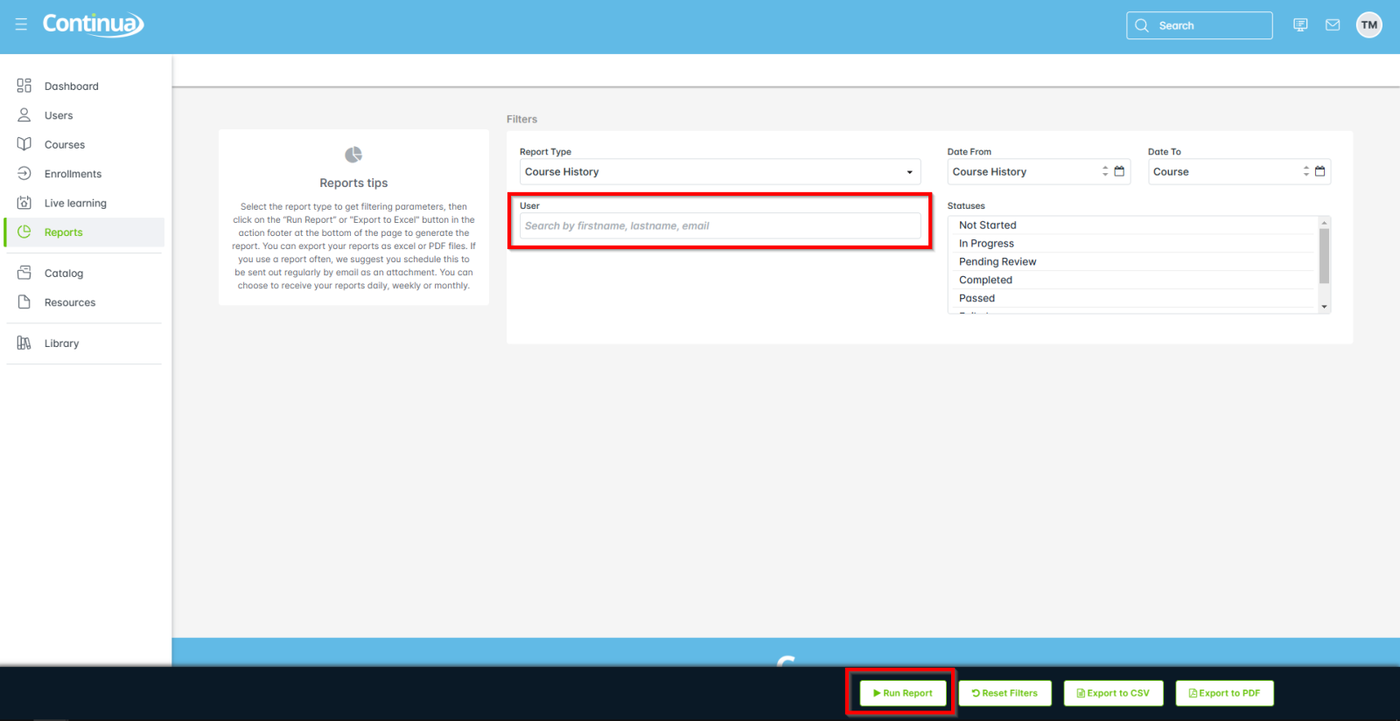
- Select which user to run the report
on.
- Select Run Report.
After running the report once you can
- edit the filters to change the results, and select Run Report to repeat the run
- select Reset Filters to start over
- select Export to CSV or Export to PDF to download a complete report
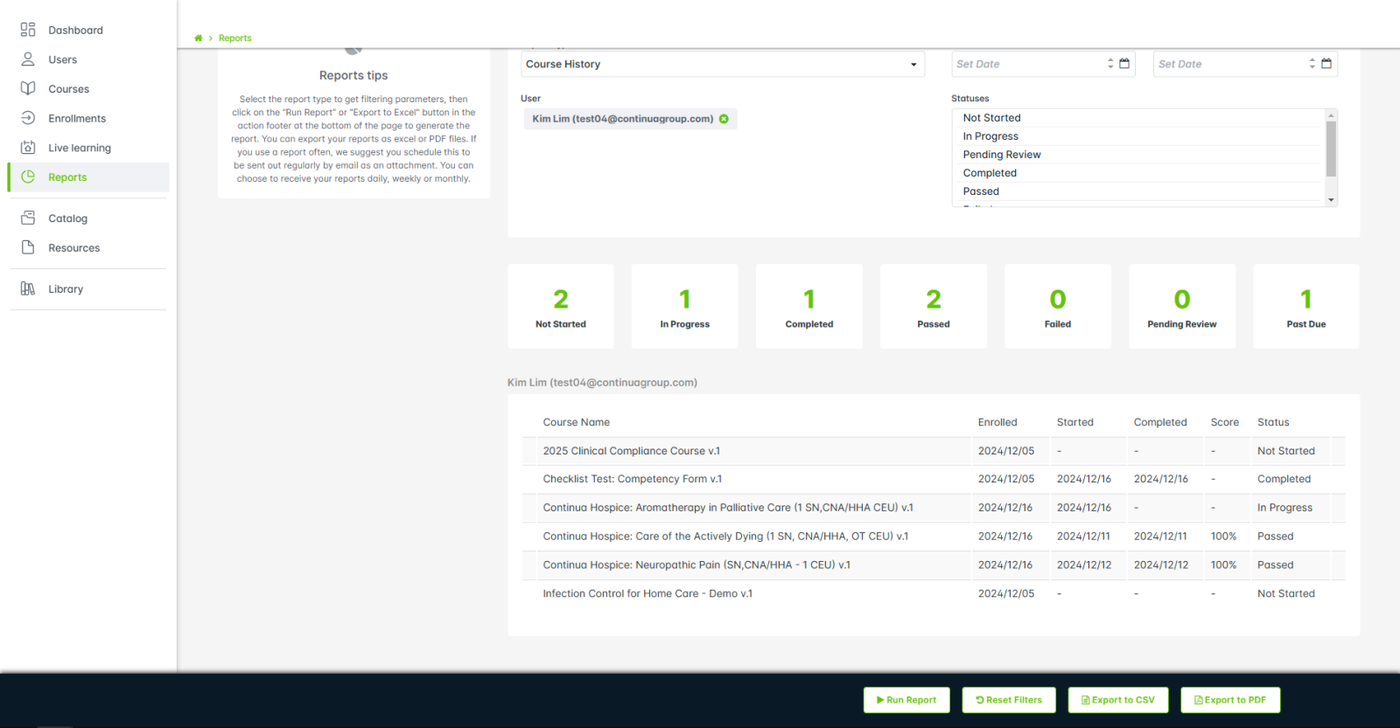
The following screenshot shows the highlights of the course history report.