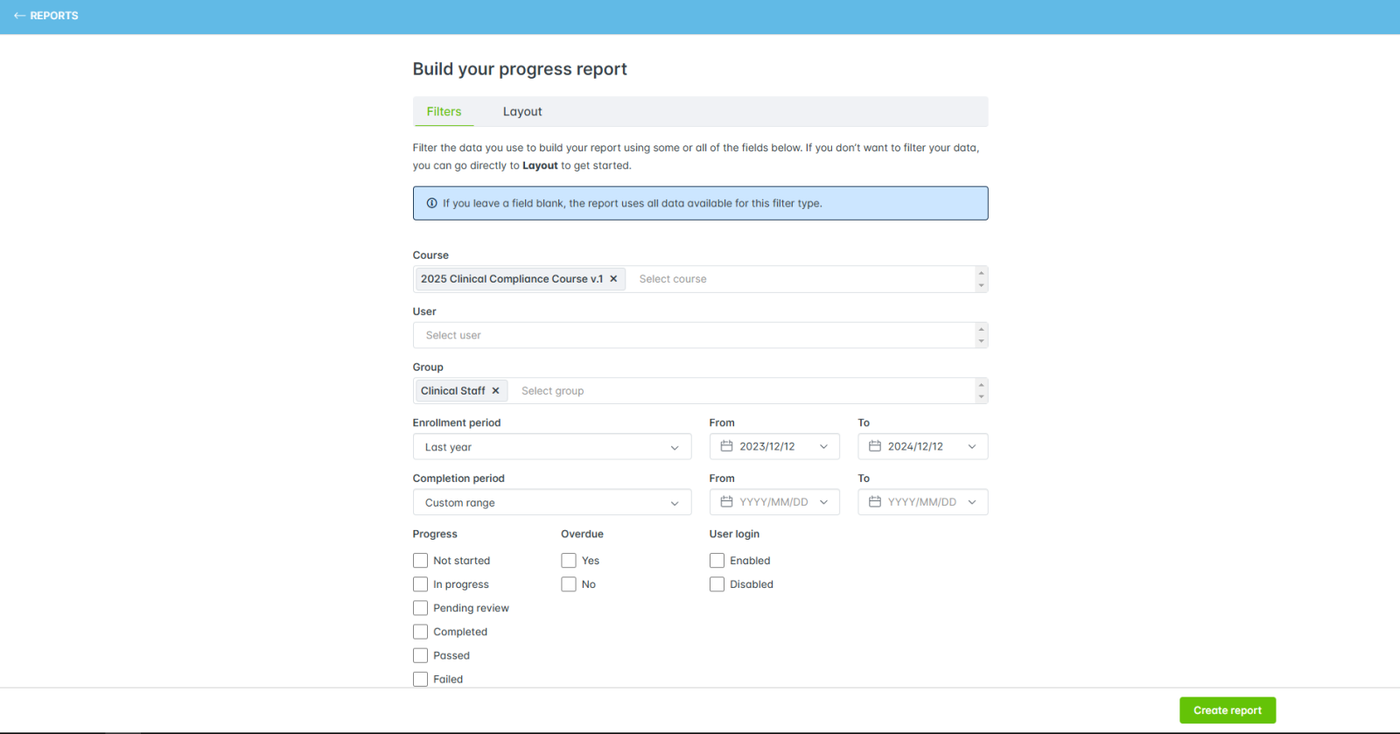

How to Run Course Progress Reports
Create an advanced report
Each advanced report provides filters relevant to its type.
Note: For a Progress report, you can select up to 100 courses for the report, or leave the field empty to report on all courses.
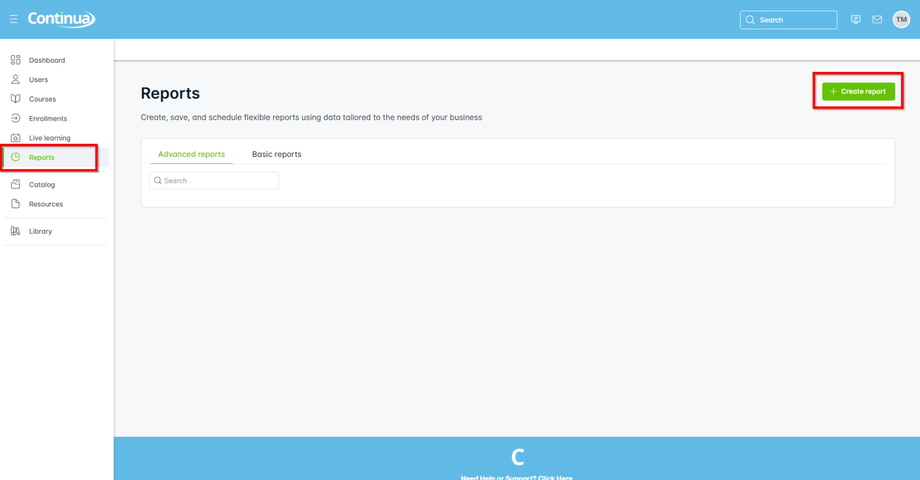
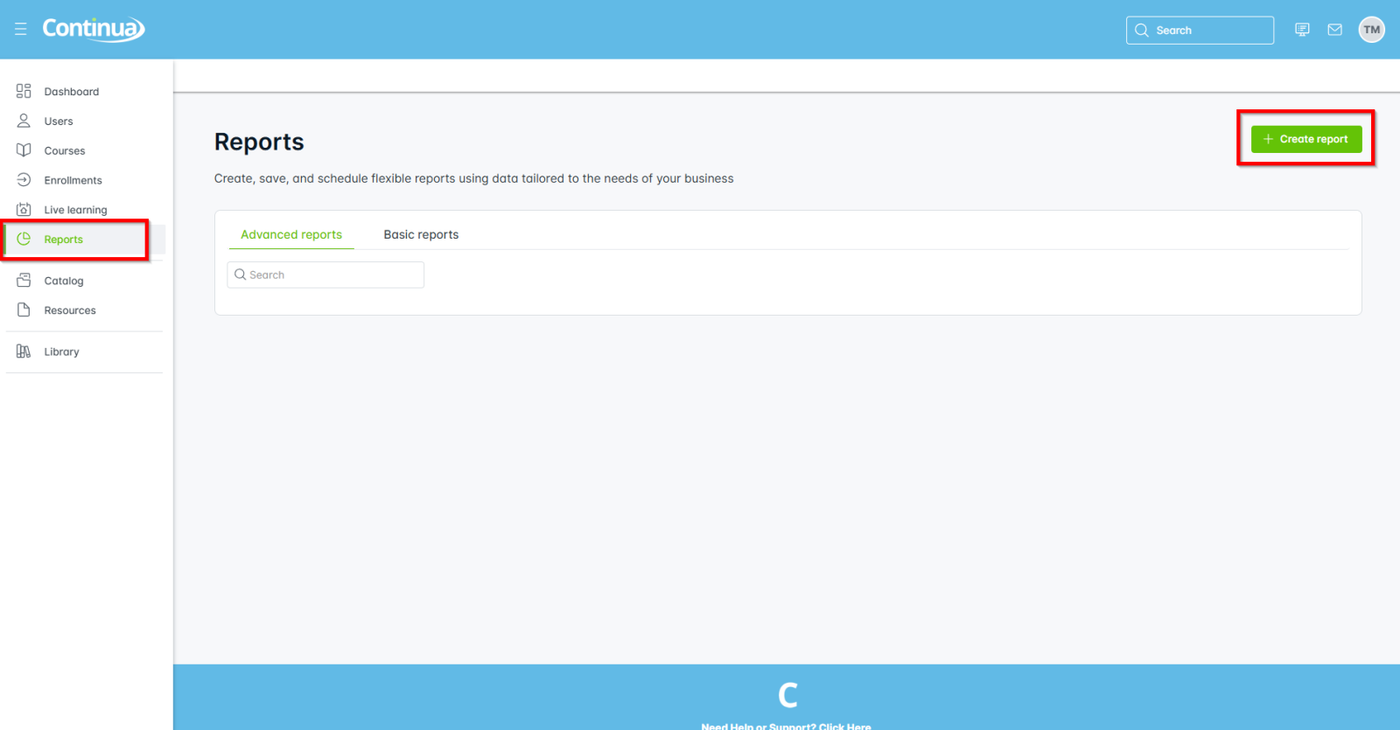
- From the main navigation go to Reports > + Create report.
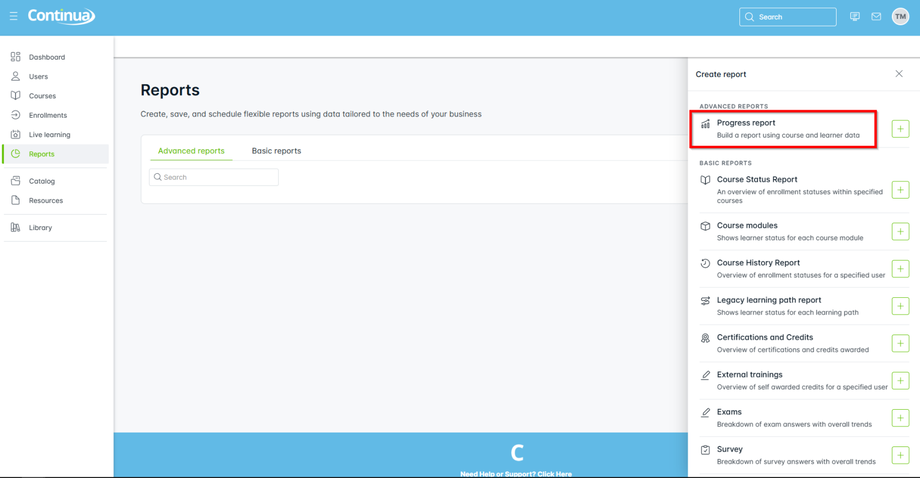
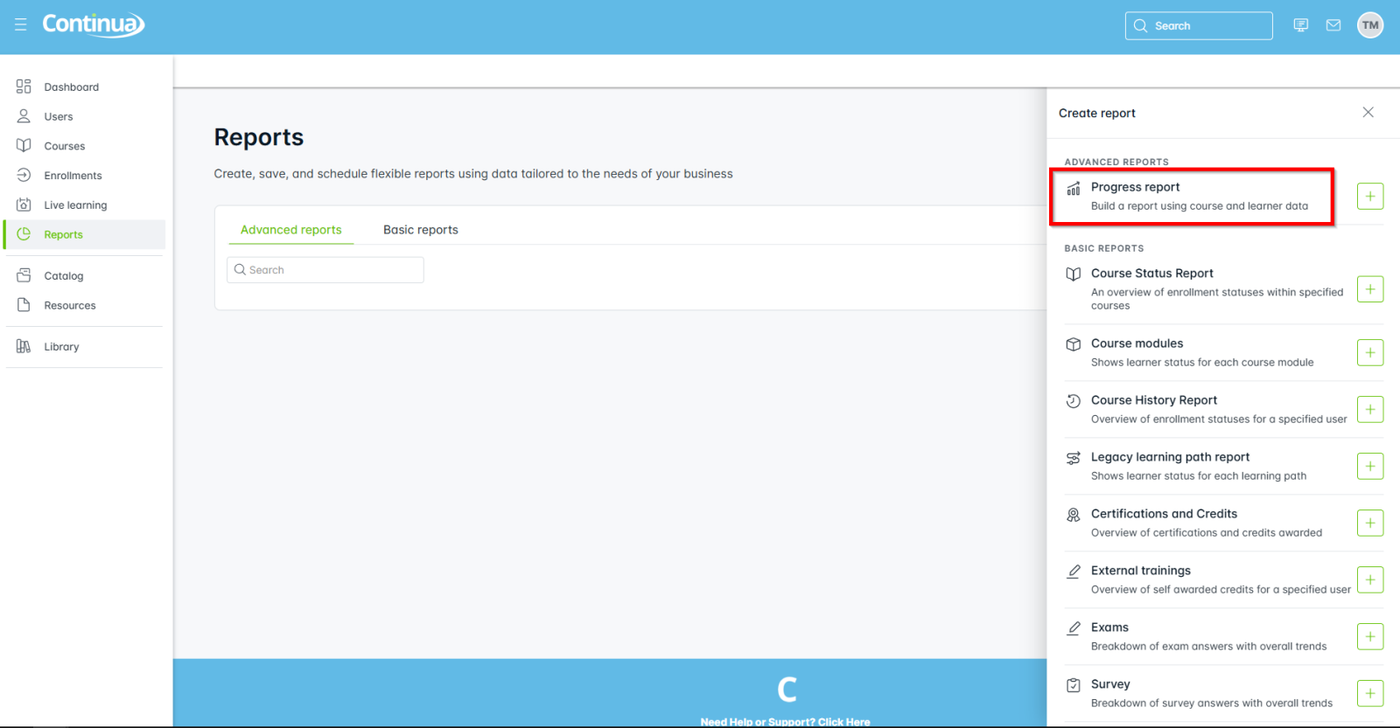
- Select Progress report
- From Filters, select the filters you need, including membership type and custom user data, if in use.
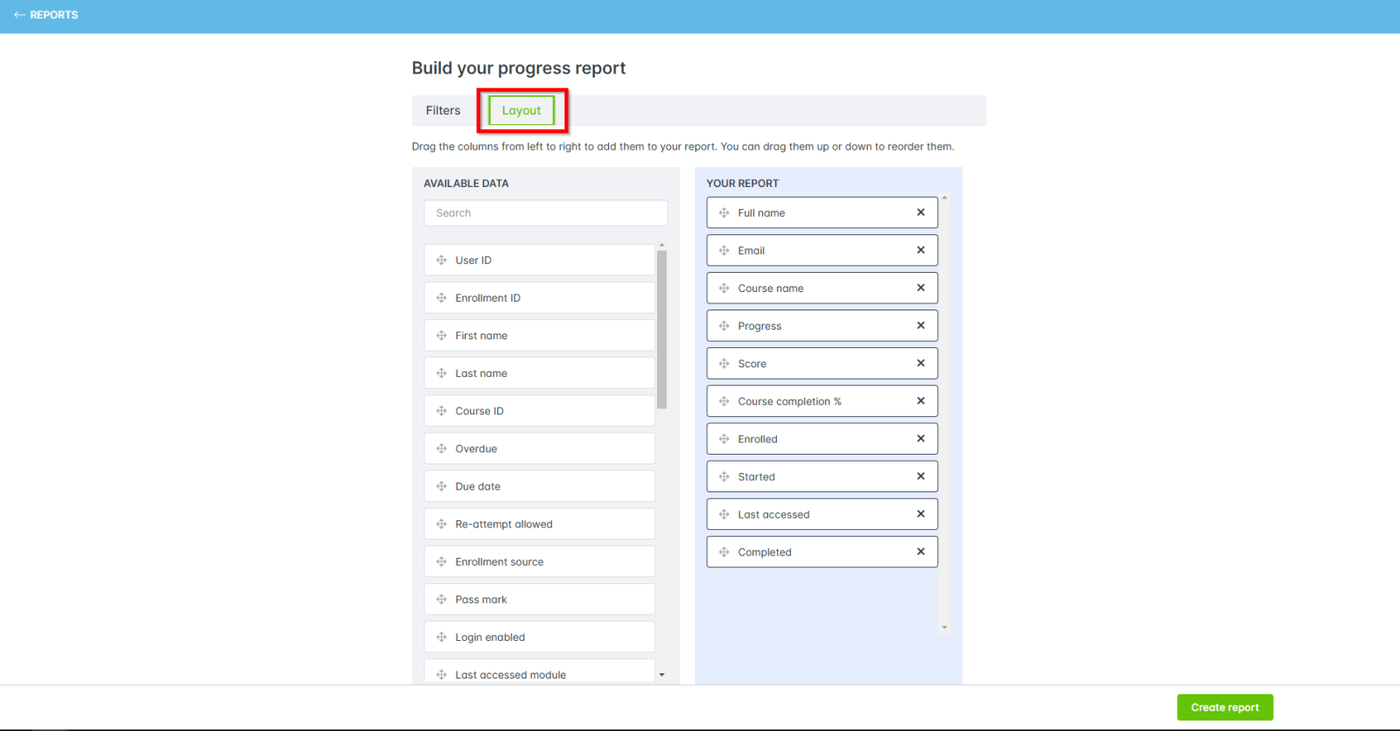
- Select Report Layout to set layout options:
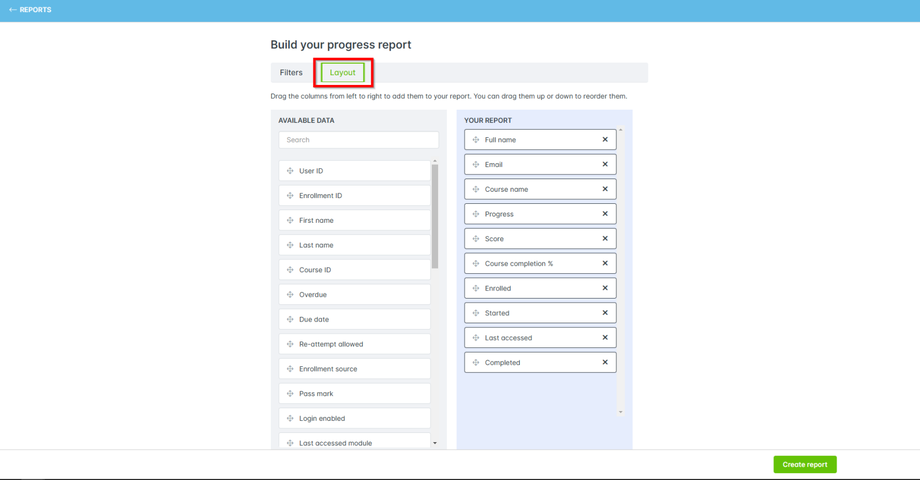
- Select columns from Available Data to add to Your Report
- Remove columns from Your Report by selecting X on the column name
- Drag and drop columns to change their display order
- When complete, select Create report.
The following screenshot shows a sample filter setup for an advanced progress report using a custom Enrollment period date range.